A Field-Trip Manual
for Teachers

How to run a coding class with the Code Builder curriculum

Start Teaching
with Code Builder

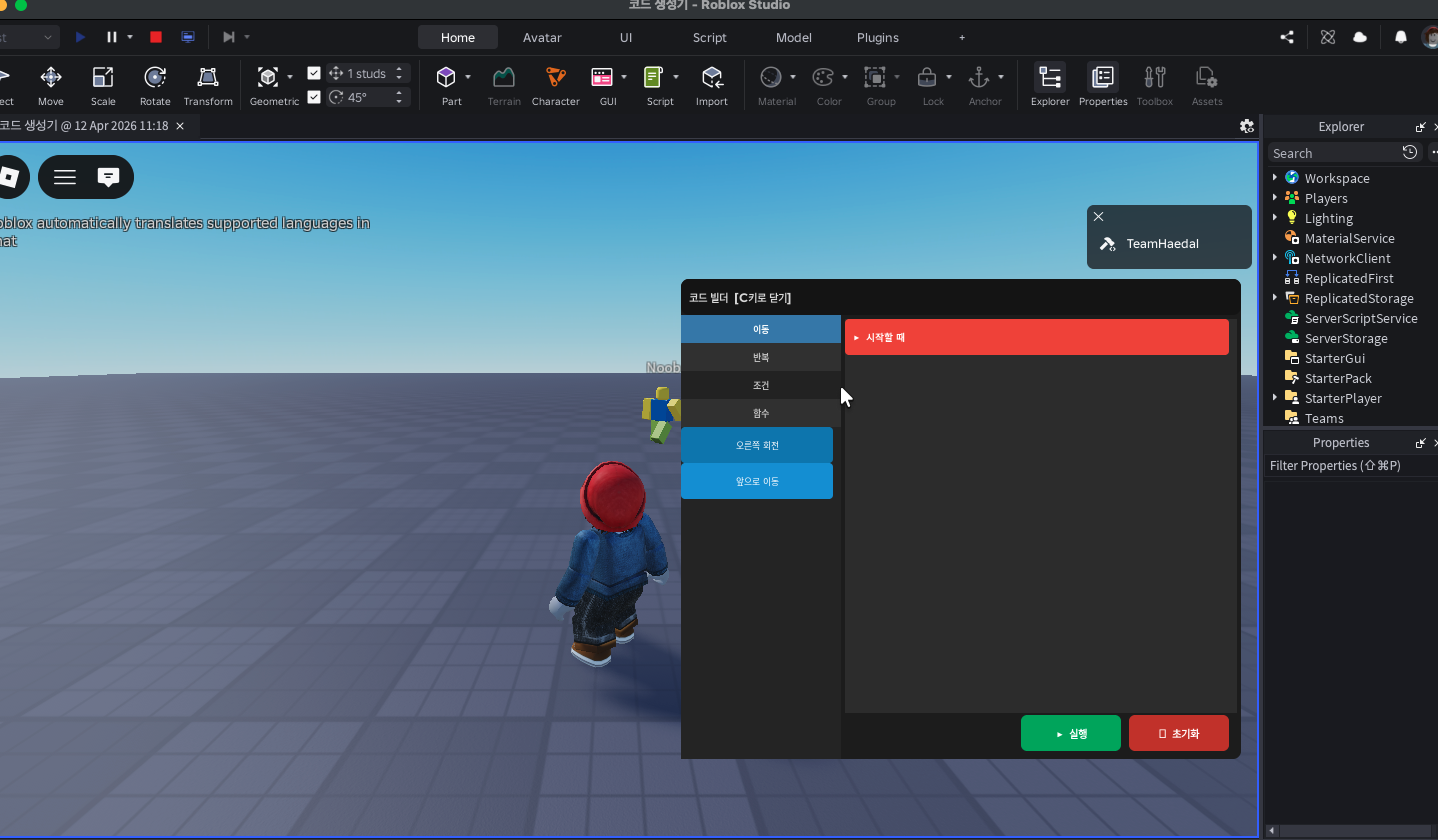
Code Builder is an in-game coding education platform where students open a block coding window during Roblox gameplay and give commands to their agent. With no separate install, students can start coding right inside a screen they already know.

This manual gives elementary and middle school teachers and coding instructors what they need to run the curriculum as a field trip or after-school class — what to prepare, how to run it, and each stage's learning goal.

Code Builder classroom screen

What You'll Need

Devices

PC (keyboard) or mobile/tablet. One per student is ideal; pairs of two also work

Internet Connection

A stable Wi-Fi connection is needed to reach Roblox servers

Roblox Accounts

Have students (or teams) log in ahead of time to save class time

Share the Play Link

Share the game link via QR code or chat beforehand to speed up joining

The 5-Step Onboarding Tutorial

New players automatically see these 5 cards on first launch. Students can follow along on their own, but knowing them ahead of time helps you answer questions fast.

1

Welcome to Code Builder!

Assemble blocks to move your character. Your character won't always listen perfectly.

2

Open & Close

Press C (PC) or the <> button (mobile) to open and close the Code Builder.

3

Select a Character

Use the < / > buttons in the header to pick which agent to control.

4

Block Palette

Drag blocks from the left onto the canvas. Switch categories using the tabs.

5

Give It a Run!

Press Run to execute your code, and Reset to move the agent back to its start position.

7 Available Blocks

Move Forward

Action · Moves the agent forward one tile (8 studs)

Turn Right

Action · Rotates the agent 90 degrees to the right

Place Flower

Action · Plants a flower at the agent's current position

Repeat

Loop · Runs the blocks inside N times (max 20)

If Obstacle

Conditional · Runs the blocks inside only when an obstacle is ahead

Define Function

Function · Names and defines a group of blocks

Call Function

Function · Runs a previously defined function

Stage Learning Goals & Progress Conditions

When a student reaches the goal tile or plants the target number of flowers, the system automatically advances them to the next map — no manual checking required. The curriculum is a gradual course toward completing your own garden, and it will keep expanding and improving over time.

Stage 1 · Move
1

Getting Started with Code Builder

Can move the character using block code

Sequencing Move Forward · Turn Right

Progress: Reach the Goal Tile

2

Escaping the Maze

Can escape a maze by arranging blocks in the right order

Sequencing (Advanced) Move Forward · Turn Right

Progress: Reach the Goal Tile

Stage 2 · Plant
1

Planting One Flower

Can use the Place Flower block together with movement

Intro to Place Flower Move Forward · Place Flower

Progress: Plant 1 flower

2

Making a Flower Path

Can plant flowers while moving to form a pattern

Sequencing + Planting Move Forward · Place Flower

Progress: Plant 3 flowers

Stage 3 · Repeat
1

Escaping the Maze with Loops

Can repeat the same action multiple times using a loop block

Loops Repeat

Progress: Reach the Goal Tile

2

Building a Flower Bed with Loops

Can create a regular flower bed using a loop block

Loops + Planting Repeat · Place Flower

Progress: Plant 5 flowers

Stage 4 · Condition
1

Detecting Obstacles

Can detect an obstacle and change behavior using a conditional block

Conditionals If Obstacle

Progress: Reach the Goal Tile

2

Conditionals Inside Loops

Can create complex behavior by nesting a conditional inside a loop

Loops + Nested Conditionals Repeat · If Obstacle

Progress: Reach the Goal Tile

Stage 5 · Function
1

Making Your Own Function

Can reuse code by defining and calling a function

Defining & Calling Functions Define Function · Call Function

Progress: Plant 3 flowers

2

A Flower Path Using Functions

Can combine functions and loops to build a flower path automatically

Functions + Loops Function · Repeat · Place Flower

Progress: Plant 5 flowers

3

Combining Multiple Functions

Can build complex behavior by creating and combining several functions

Functions (Advanced) Define Function · Call Function

Progress: Plant 6 flowers

Final · Your Own Garden

Building Your Own Garden

Can create a personal garden using everything learned so far

Free Project All blocks

Progress: Plant 10 flowers
4 Tips for a Smoother Class

Automatic Progression

When students reach a goal (tile or flower count), the system automatically moves them to the next lesson's map — no manual checking needed

Motivate with the Leaderboard

A lesson-progress ranking shows in the top-left of the screen. Seeing each other's progress naturally motivates students

Use the Reset Button

If an agent gets stuck or makes a mistake, Reset only resets its position — any flowers already planted stay put

Safe Command Execution

The server validates every command so only allowed blocks run, keeping students safe from unexpected behavior

Curious about bringing this to your students?

We welcome inquiries about field trips and after-school programs for schools, academies, and institutions.